Tampilkan postingan dengan label ODBC. Tampilkan semua postingan

C# CRUD Operations Insert,Update,Delete with MySQL Database

C# (Csharp) Tutorial for beginners - How to Edit, Update, Delete DataGridview in C# windows form? how to make CRUD example using MySQL database with ODBC connection in C# Windows Form programming languages? Today i will show you how to make simple applications using C# and MySQL Database and sure you can download full source code made from visual studio 2015.

What we needs to be prepared before you start making this application? before you must have a database (In this tutorial using MySQL database), make a connection to the database, so please read :
How to Create database with MySQL?
How to create connection using MySQL Database?

Create CRUD Operations Project

Create new project and make name with "SimpleCrudCsharp", then at the form1.cs just design as needed look like this image :
CRUD Operations Insert,Update,Delete with MySQL Database

After design our Form1.cs, we will start write line by line our code to create simple CRUD operations MySQL Database, Double click on the Form1.cs and first, we will import ODBC namespaces to our Project.
// we will create a connection
//to our project using ODBC class
using System.Data.Odbc;

Declaration Our Connection and new data in the bottom of Project Class

        // its for our connection
public OdbcConnection connection = new OdbcConnection("DSN=java_db;MultipleActiveResultSets=True;");
// declaration for NewData
public Boolean NewData;

Bind Data Into DataGridView

        private void LoadData() {
// create connection before
//open our connection
connection.Open();
// query using dataadapter into our database
OdbcDataAdapter da = new OdbcDataAdapter("SELECT * FROM biodata order by id",connection);
// we will using datatable to bing data into datagridview
DataTable dt = new DataTable();
da.Fill(dt);
// bind data into gridview
dataGridView1.DataSource = dt;
// close connections
connection.Close();
da.Dispose();
dt.Dispose();
}

Set TextBox Value from Datagridview Selected Value

        private void dataGridView1_CellClick(object sender, DataGridViewCellEventArgs e) {
// value from datagrid where clicked cells is same in the textbox
DataGridViewRow rows = dataGridView1.Rows[e.RowIndex];
textBox1.Text = rows.Cells[0].Value.ToString();
textBox2.Text = rows.Cells[1].Value.ToString();
textBox3.Text = rows.Cells[2].Value.ToString();
textBox4.Text = rows.Cells[3].Value.ToString();
textBox5.Text = rows.Cells[4].Value.ToString();
// new data is false if textbox not null
NewData = false;
}

Clear TextBox

        private void ClearText() {
textBox1.Text = "";
textBox2.Text = "";
textBox3.Text = "";
textBox4.Text = "";
textBox5.Text = "";
textBox2.Focus();
}

Function for Insert, Update and Delete Data

        private void UpdateData(string sql) {
try {
// open connection
connection.Open();
// we will using OdbC command
OdbcCommand cmd = new OdbcCommand();
cmd.Connection = connection;
cmd.CommandText = sql;
cmd.CommandType = CommandType.Text;
// execute
cmd.ExecuteNonQuery();
// show message if update data is success
MessageBox.Show("Data Hasbeen Updated!","Informations");
connection.Close();
cmd.Dispose();

} catch(Exception e) {
MessageBox.Show(e.ToString());
}
}

Source Code Start Up Project

        private void Form1_Load(object sender, EventArgs e) {
// declaration for newdata is true
// if newData is true, we will Insert new data to database
// if newdata is false, so we will Update data into database while data is eksisting
NewData = true;
LoadData();
textBox1.Enabled = false;
}

Source Code New Button (Button1)

        private void button1_Click(object sender, EventArgs e) {
// its method for add new data,
// we will declaration NewData to true if we want to add new data
// if newdata= false, so we will Update while eksisting data
NewData = true;
ClearText();
}

Source Code Save Button (Button 2)

       // its method for save or update data into database
private void button2_Click(object sender, EventArgs e) {

DialogResult Message;
string SaveData = "";
// if Newdata is True, so we will create query "UPDATE"
// if newdata is False, we will create wuery "INSERT"
if(NewData == true) {
Message = MessageBox.Show("Are you sure to add new data into database?","Informations",MessageBoxButtons.YesNo);
if(Message == DialogResult.No) {
return;
} // SAVE DATA
SaveData = "INSERT INTO biodata(nama,nis,kelas,alamat)VALUES('"+ textBox2.Text + "','" + textBox3.Text + "','" + textBox4.Text + "','" + textBox5.Text + "')";
} else {

// UPDATE DATA
SaveData = "UPDATE biodata SET nama='"+ textBox2.Text + "',nis='" + textBox3.Text + "',kelas='" + textBox4.Text + "',alamat='" + textBox5.Text + "' WHERE id='"+ textBox1.Text +"'";
}
// call functions to update or insert new data
UpdateData(SaveData);
// load datagridview with new data
LoadData();
}

Source Code Delete Button (Button 3)

        private void button3_Click(object sender, EventArgs e) {

DialogResult Message;
string delete = "";
Message = MessageBox.Show("Are you sure to delete this data?","Warning",MessageBoxButtons.YesNo);
if(Message == DialogResult.No) {
// if users klick "NO" dialog, will exit the method and do nothing
return;
} else {
// else, we will delete all data from selected id in TextBox1
delete = "DELETE from biodata WHERE id='"+ textBox1.Text +"'";
// call functions update data to execute the string query
UpdateData(delete);
LoadData();
}
}

Source Code Exit Button (Button 4)

        private void button4_Click(object sender, EventArgs e) {
this.Close();
}

Complete Source Code CRUD Example Project

using System;
using System.Collections.Generic;
using System.ComponentModel;
using System.Data;
using System.Drawing;
using System.Linq;
using System.Text;
using System.Threading.Tasks;
using System.Windows.Forms;
// we will create a connection
//to our project using ODBC class
using System.Data.Odbc;

namespace SimpleCsharpCRUD {
public partial class Form1 : Form {
public Form1() {
InitializeComponent();
}
// its for our connection
public OdbcConnection connection = new OdbcConnection("DSN=java_db;MultipleActiveResultSets=True;");
// declaration for NewData
public Boolean NewData;
private void Form1_Load(object sender, EventArgs e) {
// declaration for newdata is true
// if newData is true, we will Insert new data to database
// if newdata is false, so we will Update data into database while data is eksisting
NewData = true;
LoadData();
textBox1.Enabled = false;
}

// load data from a datatable
// you must have a database (MySQL Database) before.
// i was have a database in my localhost
// if you don't know how to create database? how to create connection with C#
// link available in descriptions

private void LoadData() {
// create connection before
//open our connection
connection.Open();
// query using dataadapter into our database
OdbcDataAdapter da = new OdbcDataAdapter("SELECT * FROM biodata order by id",connection);
// we will using datatable to bing data into datagridview
DataTable dt = new DataTable();
da.Fill(dt);
// bind data into gridview
dataGridView1.DataSource = dt;
// close connections
connection.Close();
da.Dispose();
dt.Dispose();
}

private void dataGridView1_CellClick(object sender, DataGridViewCellEventArgs e) {
// value from datagrid where clicked cells is same in the textbox
DataGridViewRow rows = dataGridView1.Rows[e.RowIndex];
textBox1.Text = rows.Cells[0].Value.ToString();
textBox2.Text = rows.Cells[1].Value.ToString();
textBox3.Text = rows.Cells[2].Value.ToString();
textBox4.Text = rows.Cells[3].Value.ToString();
textBox5.Text = rows.Cells[4].Value.ToString();
// new data is false if textbox not null
NewData = false;
}

private void ClearText() {
textBox1.Text = "";
textBox2.Text = "";
textBox3.Text = "";
textBox4.Text = "";
textBox5.Text = "";
textBox2.Focus();
}

private void button1_Click(object sender, EventArgs e) {
// its method for add new data,
// we will declaration NewData to true if we want to add new data
// if newdata= false, so we will Update while eksisting data
NewData = true;
ClearText();
}

// Functions for SAVE,UPDATE,DELETE data into database
private void UpdateData(string sql) {
try {
// open connection
connection.Open();
// we will using OdbC command
OdbcCommand cmd = new OdbcCommand();
cmd.Connection = connection;
cmd.CommandText = sql;
cmd.CommandType = CommandType.Text;
// execute
cmd.ExecuteNonQuery();
// show message if update data is success
MessageBox.Show("Data Hasbeen Updated!","Informations");
connection.Close();
cmd.Dispose();

} catch(Exception e) {
MessageBox.Show(e.ToString());
}
}

// its method for save or update data into database
private void button2_Click(object sender, EventArgs e) {

DialogResult Message;
string SaveData = "";
// if Newdata is True, so we will create query "UPDATE"
// if newdata is False, we will create wuery "INSERT"
if(NewData == true) {
Message = MessageBox.Show("Are you sure to add new data into database?","Informations",MessageBoxButtons.YesNo);
if(Message == DialogResult.No) {
return;
} // SAVE DATA
SaveData = "INSERT INTO biodata(nama,nis,kelas,alamat)VALUES('"+ textBox2.Text + "','" + textBox3.Text + "','" + textBox4.Text + "','" + textBox5.Text + "')";
} else {

// UPDATE DATA
SaveData = "UPDATE biodata SET nama='"+ textBox2.Text + "',nis='" + textBox3.Text + "',kelas='" + textBox4.Text + "',alamat='" + textBox5.Text + "' WHERE id='"+ textBox1.Text +"'";
}
// call functions to update or insert new data
UpdateData(SaveData);
// load datagridview with new data
LoadData();
}

private void button3_Click(object sender, EventArgs e) {

DialogResult Message;
string delete = "";
Message = MessageBox.Show("Are you sure to delete this data?","Warning",MessageBoxButtons.YesNo);
if(Message == DialogResult.No) {
// if users klick "NO" dialog, will exit the method and do nothing
return;
} else {
// else, we will delete all data from selected id in TextBox1
delete = "DELETE from biodata WHERE id='"+ textBox1.Text +"'";
// call functions update data to execute the string query
UpdateData(delete);
LoadData();
}
}
private void button4_Click(object sender, EventArgs e) {
this.Close();
}
}
}

Video C# CRUD MySQL Database Tutorials


Time to Debug your simple application, press "F5" and let me know what happening to our project with writing your comment on the Comment box bellow.

Information :

  1. Download Example Project Database CRUD Operations
  2. Download Full source code CRUD Operation MySQL Database

VB.NET How to Export DataGridView to PDF Using DataTable MySQL Database

VB.NET for Beginners - Export Data from DataGridView to PDF Format in VB.NET is easy to do, we will use iTextSharp.dll to create a PDF file and save into our computer with Pdf Format. Before follow this tutorial, you must have a database (MySQL Database). Because in this tutorial we will bind data into datagridview from MySQL database using DataTable, Just read :
How to create MySQL database with xampp PhpMyAdmin in Localhost?
How to Bind data from MySQL Database into DataGridView?

Export Data To PDF vb.net

We will start making project data export into .pdf format, so just open our visual studio applications, i'll using 2015 versions of visual studio, sure you can use more versions of visual studio.

Create Project Export PDF

Create new project and rename it with "VB-Net-Export", and on the form1.vb we will design with simple design look like this display :

Export DataGridView to PDF
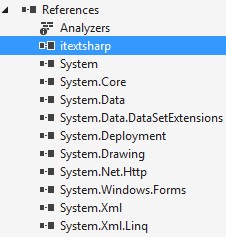
After create design on Form1.vb, we will add References (iTextSharp.dll) into our project, iTextSharp.dll is a .net pdf library and we will import iTextSharp.dll namespaces into form1.vb. you can download  iTextSharp.dll here. Download and unzip the .dll file and import into references our project :

Impoer namespaces iTextSharp.dll

After all have done, we will leave the form1.vb for a while, we will create a new connections with MySQL Database using ODBC class, so just create a new module and rename it with "ModuleConnection.Vb".

Source Code Module Connection (ModuleConnection.VB)

Imports System.Data.Odbc ' import namespaces ODBC
Module ModuleConnections
Public koneksi As OdbcConnection ' declaration our connetcions to public class
Sub OpenCOnnection()
Try
' create our connection to database using ODBC driver
koneksi = New OdbcConnection("DSN=k13new;MultipleActiveResultSets=True")
If koneksi.State = ConnectionState.Closed Then
'open our connection
koneksi.Open()
End If
Catch ex As Exception
'if connection is filed
MsgBox("Connection filed!")
End Try
End Sub
End Module

so we done here, just back into Form1.vb and write all of this code.

Source Code Export Data to PDF (Form1.Vb)

Imports System.Data.Odbc ' import namespaces ODBC class
Imports iTextSharp.text ' import namespaces .net pdf library
Imports iTextSharp.text.pdf
Imports System.IO
Public Class Form1
Private Sub Form1_Load(sender As Object, e As EventArgs) Handles MyBase.Load
openconnection() ' open our connection
Dim da As OdbcDataAdapter ' declaration data adapter
Dim dt As DataTable ' declaration data table
da = New OdbcDataAdapter("SELECT idsiswa,nama,nis,tempatlahir,alamat FROM biodata", connection)
dt = New DataTable
da.Fill(dt)
DataGridView1.DataSource = dt ' bind data table into datagridview
DataGridView1.Refresh()
connection.Close() ' close our connection
da.Dispose()
'configuration fo save file dialog
SaveFileDialog1.FileName = ""
SaveFileDialog1.Filter = "PDF (*.pdf)|*.pdf"
TextBox1.Text = "" ' for title
TextBox2.Text = "" ' for file locations
End Sub
Private Sub Button1_Click(sender As Object, e As EventArgs) Handles Button1.Click
SaveFileDialog1.FileName = ""
If SaveFileDialog1.ShowDialog = DialogResult.OK Then
' declaration textbox2 to save file dialog name
TextBox2.Text = SaveFileDialog1.FileName
End If
End Sub
Private Sub Button2_Click(sender As Object, e As EventArgs) Handles Button2.Click
' you must import itextsharp namespace into our form
' download links is available in the descriptions
Dim Paragraph As New Paragraph ' declaration for new paragraph
Dim PdfFile As New Document(PageSize.A4, 40, 40, 40, 20) ' set pdf page size
PdfFile.AddTitle(TextBox1.Text) ' set our pdf title
Dim Write As PdfWriter = PdfWriter.GetInstance(PdfFile, New FileStream(TextBox2.Text, FileMode.Create))
PdfFile.Open()

' declaration font type
Dim pTitle As New Font(iTextSharp.text.Font.FontFamily.TIMES_ROMAN, 14, iTextSharp.text.Font.BOLD, BaseColor.BLACK)
Dim pTable As New Font(iTextSharp.text.Font.FontFamily.TIMES_ROMAN, 12, iTextSharp.text.Font.NORMAL, BaseColor.BLACK)

' insert title into pdf file
Paragraph = New Paragraph(New Chunk(TextBox1.Text, pTitle))
Paragraph.Alignment = Element.ALIGN_CENTER
Paragraph.SpacingAfter = 5.0F

' set and add page with current settings
PdfFile.Add(Paragraph)

' create data into table
Dim PdfTable As New PdfPTable(DataGridView1.Columns.Count)
' setting width of table
PdfTable.TotalWidth = 500.0F
PdfTable.LockedWidth = True

Dim widths(0 To DataGridView1.Columns.Count - 1) As Single
For i As Integer = 0 To DataGridView1.Columns.Count - 1
widths(i) = 1.0F
Next

PdfTable.SetWidths(widths)
PdfTable.HorizontalAlignment = 0
PdfTable.SpacingBefore = 5.0F

' declaration pdf cells
Dim pdfcell As PdfPCell = New PdfPCell

' create pdf header
For i As Integer = 0 To DataGridView1.Columns.Count - 1

pdfcell = New PdfPCell(New Phrase(New Chunk(DataGridView1.Columns(i).HeaderText, pTable)))
' alignment header table
pdfcell.HorizontalAlignment = PdfPCell.ALIGN_LEFT
' add cells into pdf table
PdfTable.AddCell(pdfcell)
Next

' add data into pdf table
For i As Integer = 0 To DataGridView1.Rows.Count - 2

For j As Integer = 0 To DataGridView1.Columns.Count - 1
pdfcell = New PdfPCell(New Phrase(DataGridView1(j, i).Value.ToString(), pTable))
PdfTable.HorizontalAlignment = PdfPCell.ALIGN_LEFT
PdfTable.AddCell(pdfcell)
Next
Next
' add pdf table into pdf document
PdfFile.Add(PdfTable)
PdfFile.Close() ' close all sessions

' show message if hasben exported
MessageBox.Show("PDF format success exported !", "Informations", MessageBoxButtons.OK, MessageBoxIcon.Information)

End Sub

Private Sub Button3_Click(sender As Object, e As EventArgs) Handles Button3.Click
Me.Close()
End Sub

Private Sub LinkLabel1_LinkClicked(sender As Object, e As LinkLabelLinkClickedEventArgs) Handles LinkLabel1.LinkClicked
Process.Start("www.hc-kr.com")
End Sub
End Class

we have done here. Just try your simple applications using debugging mode or press "F5" key on your screen. If you are still confused by tutorials above, please see and following this video tutorial :

Video tutorial How to Export DataGridView to PDF


Informations :

  1. Download Project Export DataGridView to PDF
  2. Download Examples Databases Project (MySQL Database)

VB.NET Chart Example With Values From MySQL Database + Source Code

VB.Net for Beginner - Bagaimana cara membuat aplikasi Chart sederhana dengan menampilkan values data dari database ke windows form vb.net dengan bentuk chart atau grafik? tutorial berikut akan menjelaskan dengan detail tentang penggunaan Chart dengan contoh aplikasi Chart, serta kamu juga bisa mendownload Source Code aplikasi Chart sederhana ini tentunya. Selain itu video tutorial yang memang sudah disiapkan juga akan membantu kamu dalam belajar membuat aplikasi sederhana menggunakan bahasa pemrogramman vb.net.

Tanpa basa basi langsung saja kita akan membuat project baru di visual studio. sebelumnya ada hal yang perlu dibutuhkan diantaranya, kamu harus mempunyai sebuah database (Database MySQL) baca Cara membuat database MySQL dan sudah menginstall ODBC driver untuk mengoneksikan aplikasi kita dengan Database MySQL nantinya, baca cara mudah membuat koneksi dengan ODBC Driver karena dalam tutorial ini kita akan membuat koneksi ke database dengan ODBC Class.

Buatlah project baru dengan nama "AplikasiChart" dan pada form1.vb tambahkan componen chart, sehingga tampilan sederhana pada form1.vb kamu seperti gambar berikut :


Langsung saja kita akan membuatkan code untuk mengkoneksikan aplikasi ke database dan fatch data dari database serta akan menampilkan valuenya kedalam chart. klik dua kali pada form1.vb

Source Code Vb.NET Chart

Imports System.Data.Odbc
Imports System.Windows.Forms.DataVisualization.Charting
Public Class Form1
Private Sub Form1_Load(sender As Object, e As EventArgs) _
Handles MyBase.Load

' before follow this tutorial,
' you must have a database (MySQL database)
' we will make a connections using ODBC Drivers
' i have a database already for used

' so we will create a connection using ODBC class

Dim cmd As OdbcCommand
Dim da As OdbcDataAdapter
Dim ds As DataSet
Dim koneksi As OdbcConnection

' declaration our connection
koneksi = New OdbcConnection("DSN=java_db;" _
+ "MultipleActiveResultSets=True")
koneksi.Open() ' open the connection

' Select data from database
cmd = New OdbcCommand("SELECT * FROM " _
+ "programming order by id", koneksi)
da = New OdbcDataAdapter(cmd)
ds = New DataSet
da.Fill(ds, "programming")

koneksi.Close() ' close our connection

' set our datasource
Chart1.DataSource = ds.Tables("programming")

' set the series name
Dim Series1 As Series = Chart1.Series("Series1")

' Asigning values to x Axis
Chart1.Series(Series1.Name).XValueMember = "language"

' Asigning values to y Axis
Chart1.Series(Series1.Name).YValueMembers = "statistik"

' Column style chart
'Chart1.Series(Series1.Name).ChartType = SeriesChartType.Column

' Line style chart
'Chart1.Series(Series1.Name).ChartType = SeriesChartType.Line

' pie Style chart
'Chart1.Series(Series1.Name).ChartType = SeriesChartType.Pie

' funnel style chart
Chart1.Series(Series1.Name).ChartType = SeriesChartType.Funnel

End Sub
End Class
Sesuaikan dengan kebutuhan dan sebagai pembelajaran, jika semua sudah selesai coba di run aplikasinya. jika kamu masih bingung dengan tutorial diatas bisa langsung melihat video tutorialnya dibawah ini :

Video Tutorial Membuat Chart Sederhana di VB.NET


Download Aplikasi Chart VB.NET Sederhana
Download Database MySQL Chart Sederhana

C# Tutorial: Insert Data Into DataGridView MySQL Database + Source Code

C# for Beginner - Bagaimana cara saya untuk menampilkan data dari Database MySQL kedalam DataGridView Vs 2015? caranya sangat mudah sekali, tutorial c# bahasa indonesia kali ini kita akan mencoba menjawab pertanyaan diatas, logika yang pertama kita terapkan dalam aplikasi menampilkan data ini adalah mengoneksikan aplikasi dengan sebuah database dalam hal ini database MySQL dengan menggunakan ODBC Connections, setelah berhasil konek maka perintahkan applikasi untuk menampilkan seluruh data yang ada di dalam sebuah column database dan menampilkannya di DataGridView. bagaimana cara membuatnya? ikut tutorialnya sampai abis.

Hal pertama sebelum membuat project baru di visual studio kamu, pastikan kamu sudah memiliki database MySQL, baca cara membuat database MySQL lengkap di Localhost. Karena value yang akan kita tampilkan dalam DataGridView merupakan value dari database. dan pada akhirnya saya akan menganggap bahwa kamu sudah memiliki database dan sudah membuat koneksi Data Source ODBC Drivernya, baca membuat koneksi ODBC ke MySQL.

Project ShowData
Buatlah project baru dengan nama "ShowData" atau bisa sesuai kebutuhan, pada Form1.cs silahkan desain seperti tampilan berikut ini :

Insert Data Into DataGridView MySQL Database

Sekarang tinggalkan dulu Form1.cs, kita fokuskan membuat koneksi dan function untuk menampilkan data ke GridView.

Membuat Class model

Pada project kamu tambahkan Class baru dengan nama ClassModel.cs dan tuliskan seluruh code berikut :
using System;
using System.Collections.Generic;
using System.Linq;
using System.Text;

namespace ShowData {
public class ClassModel {

// you must have a database (MySQl) before,
// then create a Connection Data Source from Our ODBC Driver
// Follow Me

public int id { get; set; } // declarations for id field (database table)
public string nama { get; set; } // for nama field
public string nis { get; set; } // for nis
public string kelas { get; set; } // for kelas
public string alamat { get; set; } // for alamat

// then we will create a new class for our conection
// and our functions
}
}

Membuat ClassController

kemudian tambahkan lagi class baru dengan nama CLassController.cs dan tuliskan juga seluruh code berikut :
using System;
using System.Collections.Generic;
using System.Linq;
using System.Text;
using System.Data;
using System.Data.Odbc;

namespace ShowData {
public class ClassController {

// first, declarations our connection
OdbcConnection con = new OdbcConnection("DSN=java_db;MultiActiveResultSets=True;");

// create a functions for load data from database
// this data will be insert into DataGridView
public DataTable ViewData(ClassModel da) {
DataTable dt = new DataTable();
OdbcDataAdapter oda = new OdbcDataAdapter("SELECT * FROM biodata",con);
oda.Fill(dt);
return dt;
}
}
}

Source Code Form1

Jika semua sudah selesai, langkah selanjutnya kembali ke Form utama dan tuliskan seluruh code berikut :
using System;
using System.Collections.Generic;
using System.ComponentModel;
using System.Data;
using System.Drawing;
using System.Linq;
using System.Text;
using System.Windows.Forms;

namespace ShowData {
public partial class Form1 : Form {

ClassModel cm = new ClassModel();
ClassController cc = new ClassController();
DataTable dt = new DataTable();

public Form1() {
InitializeComponent();
}
private void Form1_Load(object sender, EventArgs e) {

// call sub DataGrid to show data
DataGrid();
}
public void DataGrid() {
// it will be show data into datagridview
dt = cc.ViewData(cm);
dataGridView1.DataSource = dt;
//lets try it
}
}
}
Untuk tombol Exit silahkan tuliskan code berikut :
this.Close();
Jika sudah selesai, coba di run aplikasinya. jika terjadi error dan masih bingung dalam mempelajari bahasa pemrogramman C# diatas, silahkan tonton video tutorialnya yang memang sudah kami siapkan untuk kamu, tonton sendiri ya .

Video Tutorial Insert Data Into GridViews


Download Source Code C# InsertData
Download MySQL Database C# InsertData

Tutorial CSharp : Koneksi Database MySql (ODBC)

Bagaimana cara membuat Class Koneksi Database MySql di C# (CSharp) ?

Tutorial kali ini tentang cara mudah membuat koneksi database menggunakan Database MySql pada aplikasi C#, yang sebelumnya Sector Code sudah membahas tuorial - tutorial Visual Basic.Net, diantaranya :

Tutorial VB.NET : CRUD (Create, Update, Delete) Vb.Net Database MySQL

Tutorial Vb.Net : Membuat Koneksi Database

Cara mudah membuat Koneksi Database CSharp

Langsung saja bagaimana cara membuat koneksi Database di Cshap, buatlah sebuah Form dan beri nama "FrmUtama.cs", dimana kita akan memanggil Class Koneksinya dari FrmUtama.cs tersebut, selanjutnya membuat sebuah Class, dan beri nama "ClassKoneksi.cs", disini kita akan membuat Code untuk mengkoneksikan aplikasi C# pertama kita dengan database MySql yang sebelumnya harus sudah anda buat, jika belum silahkan baca - baca artikel kami berikut Tutorial Lengkap Cara Membuat Database MySQL di PhpMyAdmin,

Well, saya anggap anda sudah membuat sebuah database, langkah tuliskan semua code berikut pada ClassKoneksi.cs yang sudah anda buat,
using System;
using System.Collections.Generic;
using System.Linq;
using System.Text;
using System.Data.Odbc;
namespace Csharp_Penjualan {
class KlassKoneksi {
public OdbcConnection cn = null;
public KlassKoneksi() {
intCkon();
}
private void intCkon() {
string strkon = "DSN=penjualan;MultipleActiveResultSets=True;";
cn = new OdbcConnection(strkon);
}
//open koneksi
public void bukaDB() {
try {
cn.Open();
}
catch (OdbcException ex) {
}
}
//Tutup Koneksi
public void tutupDB() {
try {
cn.Close();
}
catch (OdbcException ex) {
}
}
}
}
Jika sudah selesai, jangan lupa disimpan, dan silahkan buka FrmUtama.cs untuk memanggil koneksi yang sudah kita buat, oh iya.... karena kita menggunakan koneksi Odbc, maka sebelumnya anda harus membuat koneksi odbc pada server / komputer yang nantinya akan terhubung langsung dengan database kita, silahkan lihat tutorial yang sudah kami buat sebelumnya tentang Cara membuat koneksi databese MySQL di Vb.net 2010,

Selanjutnya Tuliskan seluruh Code berikut pada FrmUtama.cs berguna untuk memanggil ClassKoneksi yang sudah kita buat,
            ClassKoneksi d = new KlassKoneksi();
d.bukaDB(); // untuk membuka koneksi yang diambil dari ClassKoneksi
// do anything with your connection
d.tutupDB(); // untuk menutup koneksi jika sudah tidak diperlukan
Jika msih bingung dengan tutorial cara membuat komeksi dengan menggunakan bahasa pemrogramman C# diatas, langsng saja lihat video tutorial berikut :

Video Tutorial Membuat Koneksi C# Database MySQL


Mudah - mudahan tutorial cara membuat koneksi di CSharp yang sederhana ini bermanfaat bagi kita semua, jangan lupa dishare jika menyukai artikel - artikel di Sector Code
terima kasih ;)